We've moved!

You will be automatically redirected to the new address. If that does not occur, visit
http://www.techimperial.com
and update your bookmarks.

Showing posts with label jailbreak. Show all posts

Sunday, February 19, 2012

Add music to your iPhone without syncing via PwnTunes

Now you don't have to sync with iTunes to add music to your iDevice!


After having many Apps installed and using more than one computer, something finally hit a nerve and I said, there has to be a solution to this whole syncing problem; my answer was PwnTunes. I don't think I have to get too technical today, but let me explain a few things first...

Lets say you have over 40 or more Apps and you remove or download more at a later date and then have over 60 Apps, lets also say you had some music on your first sync too, but since that date (maybe a month, maybe weeks) you haven't synced with iTunes. Now, it is no longer a casual sync, it is a task, because it will take you anywhere from 10 to 30 minutes to verify, sync and import the newly downloaded Apps to iTunes from your device, vice versa.

If you are a busy person and on the move quite often, you really don't have that extra time to dedicate to syncing every few days, do you? I like to go to the gym when I have spare time and I need new music, my music library is always growing and syncing can be bothersome.


PwnTunes also supports importing files such as MP3s to your iPod App by downloading them with Safari Download Manager (a cydia tweak) and moving them to the "My Music" folder with an App such as iFile. The same process can be done for importing images into the Photos App. You can even add music from another computer without having to delete your music library (like with iTunes syncing), did I mention you can export your music files too? Yeah, even your purchased songs.

Next time all you have to do is grab your iPhone, iPod Touch or iPad and just connect it to your computer with your usb cord or wirelessly through SSH, it's as simple as dragging the new music into a folder when connected and you can listen to it through the iPod App on your device next time you hit the gym, no more lengthy iTunes syncing! You will need to have "PwnTunes" installed, you can find it on Cydia in the BigBoss repository, it is developed and maintained by SpiritOfLogic. With over 800,000 downloads since conception, we have a real keeper here.

PwnTunes is the only tweak and Cydia App that can successfully import your new music files through drag and drop interface, natively from your operating system, who doesn't like the sound of that? No more checking if you synced the right Apps or that you backed up the right things, just drag and drop and open up the iPod App and you're good to go with the new music, nothing else gets changed!


The developer of this wonderful piece of software has been hard at work to make this a reality, with multiple changes, updates, and rewrites all to keep up with the way Apple implements their code. That's a lot of work for these features and it is well worth the one time purchase price of $12.99 USD.

Note: On behalf of PwnTunes, the developer and TechImperial.com would like to give away 3 free product licenses, any three creative tweets between 03/05/12 through 03/31/12 mentioning "@pwntunes #cydia" will be awarded the licenses!

Requirements
PwnTunes (App)
iPhone, iPod Touch or iPad (Hardware)


Monday, December 26, 2011

How to update your iPhone 4 Jailbreak from iOS 4.2.1 to 4.3.3 Untethered


Well since jailbreaking isn't so simple after iOS 4.2.1, I had to make this guide to show you how to successfully jailbreak your iPhone while keeping your old baseband and using your SHSH blobs for 4.3.3.

This guide should apply to anyone who has 4.3.3 blobs saved through Cydia and can retrieve them or has them saved somewhere. Now you can jailbreak your iPhone 4 from iOS 4.2.1 to 4.3.3 Untethered using redsn0w. This will teach you how to do the update and jailbreak all while keeping your old Cydia tweaks from your previous jailbreak version.

Requirements
TinyUmbrella (Software)
iTunes (Software)
redsn0w 0.9.9b9d (Software)
Java 6 Update 30+ 32-bit (Software)
OpenBackup (App)
Stock Apple iOS 4.3.3 for iPhone 4 GSM 8J2 (Software)

    Instructions
  1. First, make sure you backup your iPhone through iTunes.
  2. Now, backup all your Cydia tweaks with OpenBackup. (You're going to have to SSH into your device to grab the backup it made and save it on the computer, you can find OpenBackup at repo.modyouri.com)
  3. Get your SHSH Blobs using TinyUmbrella make sure the option to get them from Cydia is checked under the "Advanced" tab.
  4. Download the stock firmware from Apple for iPhone 4 GSM iOS 4.3.3 8J2.
  5. Next, run redsn0w 0.9.9b9d, select "Extras", now select "SHSH blobs" and then select "Stitch".
  6. You should now see two buttons, click on "IPSW" and when explorer pops up, find the stock Apple firmware you just downloaded, select it.
  7. Now click "Local" and find your SHSH blobs you downloaded earlier through TinyUmbrella and select them, then click next and allow it to stitch the stock firmware.
  8. Now close redsn0w and open it again, select "Extras" and click on "Custom IPSW", when explorer opens up find the IPSW you just stitched, it should be on your desktop. (Not the stock one)
  9.  After it's done processing the file, you should have a new firmware named something like "NO_BB_4205467635188_iPhone3,1_4.3.3_8J2_Restore.ipsw".
  10. Now in redsn0w place your device in "Pwned DFU" mode.
  11. In iTunes restore your device, hold shift and click on "Restore" so you can select the custom IPSW. (The file you stitched with your blobs and removed the baseband data from, also make sure that in TinyUmbrella you selected Cydia as your host before doing this step)
  12. After that is done, do not restore the iPhone's backed-up data, iTunes will ask you to do so, do not do that yet, close iTunes.
  13. Next, using redsn0w select "Extras", then click "Select IPSW", select the stock Apple firmware here. (Not the modified one, the stock, it will let you know it identified it)
  14. Now click "< Back" and select "Jailbreak", select your options the ones you want installed. (Cydia is important, I wouldn't recommend any of the others)
  15. Now restore your Cydia tweaks with OpenBackup. (This will take a while, make sure to place the backup from completing the second step in the original folder through SSH located at /var/mobile/Library/Preferences/OpenBackupFiles)
  16. The final step is to Restore your backup from iTunes now, sync through iTunes, finally restore the same backup through iTunes again.
  17. Reboot and you have successfully upgraded your jailbreak from iOS 4.2.1 to iOS 4.3.3 on your iPhone 4 GSM, while preserving the baseband and having your SHSH blobs.


Sunday, November 20, 2011

iAP Cracker: Free In-App Purchases

Free In-App Purchases on jail-broken devices.

In-App Purchases are now free for those with jail-broken devices, ever wondered how you could beat a game that had In-App Purchases? Maybe you didn't want to waste your hard earned money on extras, or you just didn't want to spend an eternity trying to come up with gold coins. Now there's actually an easy solution to fix your problem; it enables you to progress in any game or app that allows you to do In-App Purchases. (Not every app, but a majority of them, here's a list, you can try apps not on the list, many of them may work)

Note: If you're looking to test this on some randoms apps, a simple Google™ search should do the trick, just click here. This simple search uses Google™ search operators, here's what it looks like:
site:"itunes.apple.com" intitle:"App Store" intext:"Top In-App Purchases"

Don't let the name fool you, this is not a crack or anything of the sort, it's a Mobile Substrate Addon (11kb), it was written and developed by urus, it's called iAP Cracker.

The latest version is 0.5-1 (it works on iOS 4 & 5), there's links below where you may be able to find the .deb file and install it through iFile or however you choose to. You can also search for it on Cydia, it should be in the Banned iPhone repository. Now you can buy all the coins in Dark Meadow™ or Unlock the Mighty Eagle in Angry Birds™. This also makes Nadis Lai's Game Mod add-ons useless for a majority of games which implement IAP, iAP Cracker is free, his stuff isn't.

Wednesday, November 16, 2011

Free Texting on your iPhone with Google Voice, Tlert & SMS GV Extension

Free texting for the whole family with Google Voice™ on the iPhone!

I wanted to write about this awhile back, it's actually pretty cool, I didn't realize how easy it was to enable native texting (not using any 3rd party apps) with my Google Voice™ account on my iPhone, when I found out, I liked it, although I don't use it anymore, but if I ever had to, I definitely would.

This is a pretty simple procedure to follow and only requires installation of three apps, your iPhone must be jail-broken and you must have a data plan or WiFi connectivity. (You do not need to be jail-broken if you are fine with using the Google Voice™ app every-time you want to text someone, simply ignore all the steps and install Google Voice™ from the App Store)

You will need to have a Google Voice™ account in order to use this functionality. Follow the steps below if you want to be able to SMS without opening an app.

    Instructions
  1. First, you will want to install Google Voice™ from the official App Store.
  2. Now you must install an app called Tlert from Cydia it's in the ModMyi repository. Please keep in mind that Tlert is not free, it comes with a price of $6.99, if for some reason you cannot afford Tlert there is a legal patch you can grab through Banned iPhone repository. (If you use the patch you must make sure that Tlert is installed even as trial and then make sure Tlert is disabled before you install the patch and you have rebooted and re-enabled Tlert)
  3. After you have installed Google Voice™ and Tlert you should now be ready for the final steps, make sure you have the BigBoss repository installed on Cydia.
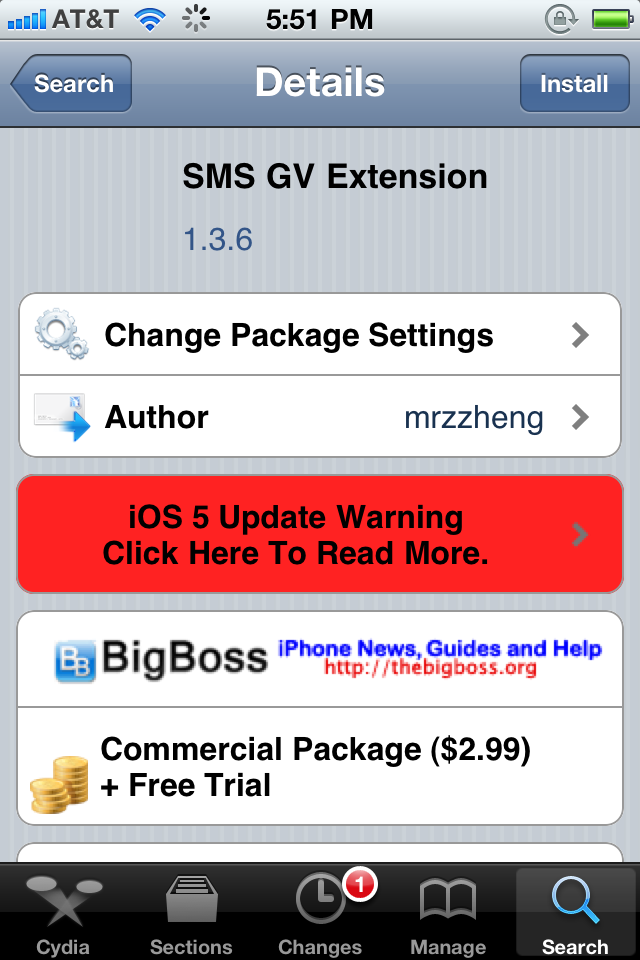
  4. Alright, open up Cydia and search for SMS GV Extension. It costs $2.99, it also includes a free trial, this adds Google Voice™ messaging capability to the device's SMS module. The website for it can be found here.
  5. Congratulations, you've completed all of the previous steps, you're going to want to optimize your settings now, look below to set everything up perfectly.

    Configuration
  1. Open Tlert, make sure enabled is toggled on.
  2. Now click on "Activate Compose", it'd be best to use the Volume Buttons "Down, Up" to send an SMS through Tlert, so check it and go back, then hit Apply.
  3. Now go to the Settings app, click on "Notifications", click on "Google Voice" and enable "Alerts".
  4. Finally go back to the Settings app and scroll down to "SMS GV Extension", click on it then input the e-mail address you use to login into Google Voice with password.
  5. Toggle "Enable Send" to on. Toggle "Check License" on. Click Receive Settings and Toggle "Official GV app" on, "Local Mail" off, "Refresh Cache" on.
  6. Now go back to Settings and re-spring your device.
  7. Open the "Google Voice" app and make sure the same account you used on "SMS GV Extension" is logged in through the app, you can now exit the app after logging in.
  8. Finally test it out, have someone text your Google Voice number and see for yourself.


If you have any problems figuring this out or installing any of the above, drop a comment and I'll be happy to help you out.

Sunday, November 13, 2011

Fix FieldTest, iOS Diagnostics, AdSheet and others from showing up on Springboard, iPhone & iOS

Have you ever installed something through Installous 4 or Cydia, afterward coming back to Springboard to see some blank icons with labels like FieldTest, iOS Diagnostics, AdSheet, Setup, Intellicontainer or others which are never supposed to be showing in the first place?

Screen-shot of the libhide bug.

This issue is known and it's a bug because it happens after installing any app through your iPhone, this might apply to iPod Touch but, I'm only covering the iPhone in detail here.

The cause for this problem comes from a dylib named "libhide", from the author's description it is a library to hide icons. I do not know which version of libhide you have or had in the past so you are going to be doing some manual work here if you are to remove this bug.

    Solution
  1. Close all your current running apps.
  2. Open SBSettings, click "More", scroll down and open "Poof", make sure that all your icons are toggled on. 1, 2, 3.
  3. Now you need to install the latest version of libhide, as of 11/13/2011 the latest libhide version is 2.1.
  4. You can either download it from here and install it through iFile by clicking on the .deb file and selecting install or you can open Cydia and add http://apt.thebigboss.org as a source then install it after searching for it. (If you have any trouble finding it on Cydia make sure you have Developer enabled by going to Manage > Settings > Select Developer and Click Done)
  5. Open SBSettings and click "More", "Mobile Substrate Addons" make sure libhide is toggled on.
  6. Now that you installed the latest version of libhide and did the above, you must hard reboot your idevice.
  7. Upon restarting and unlocking you should now open SBSettings and click "More", "Mobile Substrate Addons" and toggle libhide off. (You can leave it on if you'd like, I had no need for it on) 4.
  8. If you toggled it off, hard reset your device once more.
  9. Upon restarting and unlocking your device, this time you should open Installous or Cydia and install an app, this should have fixed your problem and you'll no longer see those pesky icons on Springboard again.

Note: It's been reported that the icons will still appear on some devices for unknown reasons, if this is the case with yours, toggle libhide off in Mobile Substrate Addons or remove it through Cydia altogether.


iPod App Crashes, iPhone & iPod

iPod
iPod Logo Copyright © 2011 Apple Inc.


The Issue
Some mp3s synced through iTunes that did not originate from the iTunes store causes iPod.app to crash within iOS 4+, usually every time you hit "Shuffle" within the iPod App, it will crash.

I too have been having this issue, I use something called Replay Media Catcher 4 when I listen to premium streaming music or podcasts, it does a great job catching streams. Although, it tags some files, I am assuming that some of the tagging corrupts the database in iTunes so that my iPhone cannot play some of the tagged files (I know it is the tagging or default encoding of the file because I have tested it by converting files from mp3 to m4a and the latter doesn't crash the iPod App).

You could just convert the files to m4a or whichever format you like that your device supports playback of, but that is a lengthy and ridiculous process and will inevitability lead to audio quality loss.

    Solution
  1. Disable spotlight search for audio files, including podcasts, etc.
  2. Browse to /private/var/mobile/Media/
  3. You should see "com.apple.dbaccess.lock", delete that file and if you see anything such as iTunesDB or similar, delete that as well, do not delete anything with "lock" or "sync" in the name as these are important files.
  4. In the same directory there is a directory named "iTunes_Control" go into that directory.
  5. Ignore the "Music", "Ringtones" directories. (Do not modify their contents)
  6. This is where you can figure out the rest, there is an "iTunes" and "Artwork" directory.
  7. Go into "Artwork" and delete all files and folders within it.
  8. Go back and enter "iTunes", you'll see plists, delete whichever one has anything to do with databases.
  9. Enter "iTunes Library.itlp" and delete anything that has to do with iTunes/Music databases here too. (Note "Library.itdb" is ok to have)
  10. There is another directory within this one called "DBTemp", delete whatever is in it.
  11. Hard Reboot.
  12. Profit. (If you re-sync, there's nothing to worry about)