We've moved!

You will be automatically redirected to the new address. If that does not occur, visit
http://www.techimperial.com
and update your bookmarks.

Showing posts with label app. Show all posts

Thursday, April 12, 2012

Change iPhone text sound, new mail sound, and UISounds (System Sounds) on iOS

Change the iPhone UI sounds with Audacity and Cyberduck.


Have you ever wanted to change the iPhone's default system sounds? Like when you check the Mail App and it downloads new mail you usually hear a ding, or perhaps the famous swoosh sound when sending a text, those are both iOS system sounds, or UISounds on your device.

This guide will show you how easy it is to make any of your audio files into a system sound you can upload to your device and use instead of the default ones.

Note: Always make sure to backup your default UISounds, either by renaming the extension to .bak or by saving them on your computer (SentMessage.caf is the swoosh sound after sending a text, new-mail.caf is the ding you hear when downloading new mail).

Default UISounds Directory:
/System/Library/Audio/UISounds/


Requirements
Audacity (Software)
Cyberduck (Software)
QuickTime Player (Only to preview the .caf audio) (Software)
Jailbroken iPhone (Hardware)

    Instructions
  1. Find the audio file you want to use to replace a default system sound.
  2. Now open the file through Audacity.
  3. Export the file as AIFF (Apple) signed 16 bit PCM type and make sure you add .caf to the end of the file name and click save. A warning box will appear, click yes.
  4. Next, open Cyberduck and SSH into your iPhone or device to the default UISounds directory listed above.
  5. Once you are there, find the sound you want to replace, such as SentMessage.caf.
  6. Rename the original (the one on the device we're replacing) SentMessage.caf to SentMessage.caf.bak to backup the original sound.
  7. Finally, rename the sound you exported in Audacity to SentMessage.caf (It's cAsE SeNsItIvE).
  8. Lastly, upload the exported file to the default UISounds directory and respring your device.
  9. Repeat these steps for any other sounds you want to replace and profit.


Wednesday, November 16, 2011

Free Texting on your iPhone with Google Voice, Tlert & SMS GV Extension

Free texting for the whole family with Google Voice™ on the iPhone!

I wanted to write about this awhile back, it's actually pretty cool, I didn't realize how easy it was to enable native texting (not using any 3rd party apps) with my Google Voice™ account on my iPhone, when I found out, I liked it, although I don't use it anymore, but if I ever had to, I definitely would.

This is a pretty simple procedure to follow and only requires installation of three apps, your iPhone must be jail-broken and you must have a data plan or WiFi connectivity. (You do not need to be jail-broken if you are fine with using the Google Voice™ app every-time you want to text someone, simply ignore all the steps and install Google Voice™ from the App Store)

You will need to have a Google Voice™ account in order to use this functionality. Follow the steps below if you want to be able to SMS without opening an app.

    Instructions
  1. First, you will want to install Google Voice™ from the official App Store.
  2. Now you must install an app called Tlert from Cydia it's in the ModMyi repository. Please keep in mind that Tlert is not free, it comes with a price of $6.99, if for some reason you cannot afford Tlert there is a legal patch you can grab through Banned iPhone repository. (If you use the patch you must make sure that Tlert is installed even as trial and then make sure Tlert is disabled before you install the patch and you have rebooted and re-enabled Tlert)
  3. After you have installed Google Voice™ and Tlert you should now be ready for the final steps, make sure you have the BigBoss repository installed on Cydia.
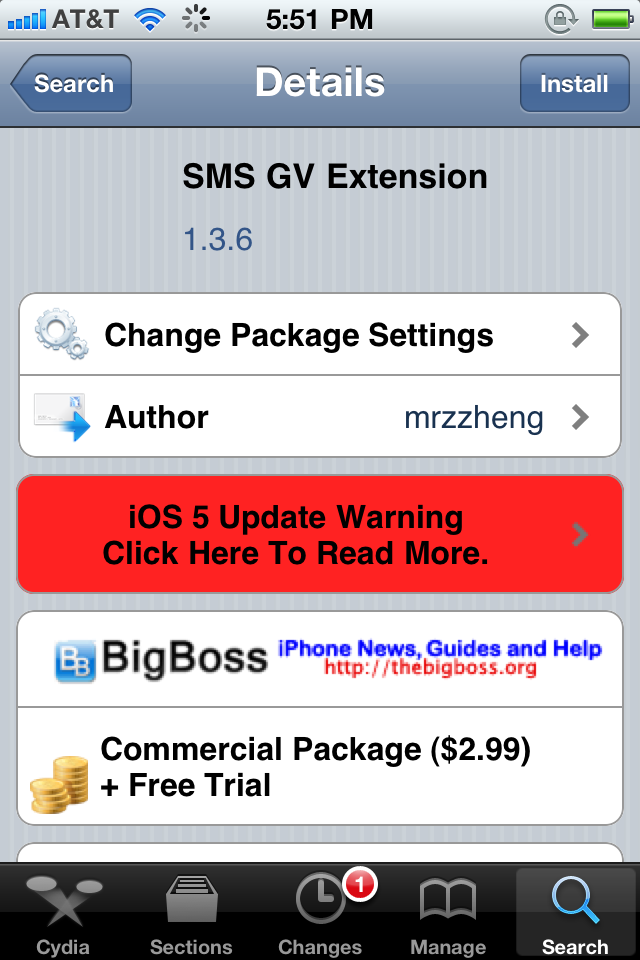
  4. Alright, open up Cydia and search for SMS GV Extension. It costs $2.99, it also includes a free trial, this adds Google Voice™ messaging capability to the device's SMS module. The website for it can be found here.
  5. Congratulations, you've completed all of the previous steps, you're going to want to optimize your settings now, look below to set everything up perfectly.

    Configuration
  1. Open Tlert, make sure enabled is toggled on.
  2. Now click on "Activate Compose", it'd be best to use the Volume Buttons "Down, Up" to send an SMS through Tlert, so check it and go back, then hit Apply.
  3. Now go to the Settings app, click on "Notifications", click on "Google Voice" and enable "Alerts".
  4. Finally go back to the Settings app and scroll down to "SMS GV Extension", click on it then input the e-mail address you use to login into Google Voice with password.
  5. Toggle "Enable Send" to on. Toggle "Check License" on. Click Receive Settings and Toggle "Official GV app" on, "Local Mail" off, "Refresh Cache" on.
  6. Now go back to Settings and re-spring your device.
  7. Open the "Google Voice" app and make sure the same account you used on "SMS GV Extension" is logged in through the app, you can now exit the app after logging in.
  8. Finally test it out, have someone text your Google Voice number and see for yourself.


If you have any problems figuring this out or installing any of the above, drop a comment and I'll be happy to help you out.

Sunday, November 13, 2011

Fix FieldTest, iOS Diagnostics, AdSheet and others from showing up on Springboard, iPhone & iOS

Have you ever installed something through Installous 4 or Cydia, afterward coming back to Springboard to see some blank icons with labels like FieldTest, iOS Diagnostics, AdSheet, Setup, Intellicontainer or others which are never supposed to be showing in the first place?

Screen-shot of the libhide bug.

This issue is known and it's a bug because it happens after installing any app through your iPhone, this might apply to iPod Touch but, I'm only covering the iPhone in detail here.

The cause for this problem comes from a dylib named "libhide", from the author's description it is a library to hide icons. I do not know which version of libhide you have or had in the past so you are going to be doing some manual work here if you are to remove this bug.

    Solution
  1. Close all your current running apps.
  2. Open SBSettings, click "More", scroll down and open "Poof", make sure that all your icons are toggled on. 1, 2, 3.
  3. Now you need to install the latest version of libhide, as of 11/13/2011 the latest libhide version is 2.1.
  4. You can either download it from here and install it through iFile by clicking on the .deb file and selecting install or you can open Cydia and add http://apt.thebigboss.org as a source then install it after searching for it. (If you have any trouble finding it on Cydia make sure you have Developer enabled by going to Manage > Settings > Select Developer and Click Done)
  5. Open SBSettings and click "More", "Mobile Substrate Addons" make sure libhide is toggled on.
  6. Now that you installed the latest version of libhide and did the above, you must hard reboot your idevice.
  7. Upon restarting and unlocking you should now open SBSettings and click "More", "Mobile Substrate Addons" and toggle libhide off. (You can leave it on if you'd like, I had no need for it on) 4.
  8. If you toggled it off, hard reset your device once more.
  9. Upon restarting and unlocking your device, this time you should open Installous or Cydia and install an app, this should have fixed your problem and you'll no longer see those pesky icons on Springboard again.

Note: It's been reported that the icons will still appear on some devices for unknown reasons, if this is the case with yours, toggle libhide off in Mobile Substrate Addons or remove it through Cydia altogether.


iPod App Crashes, iPhone & iPod

iPod
iPod Logo Copyright © 2011 Apple Inc.


The Issue
Some mp3s synced through iTunes that did not originate from the iTunes store causes iPod.app to crash within iOS 4+, usually every time you hit "Shuffle" within the iPod App, it will crash.

I too have been having this issue, I use something called Replay Media Catcher 4 when I listen to premium streaming music or podcasts, it does a great job catching streams. Although, it tags some files, I am assuming that some of the tagging corrupts the database in iTunes so that my iPhone cannot play some of the tagged files (I know it is the tagging or default encoding of the file because I have tested it by converting files from mp3 to m4a and the latter doesn't crash the iPod App).

You could just convert the files to m4a or whichever format you like that your device supports playback of, but that is a lengthy and ridiculous process and will inevitability lead to audio quality loss.

    Solution
  1. Disable spotlight search for audio files, including podcasts, etc.
  2. Browse to /private/var/mobile/Media/
  3. You should see "com.apple.dbaccess.lock", delete that file and if you see anything such as iTunesDB or similar, delete that as well, do not delete anything with "lock" or "sync" in the name as these are important files.
  4. In the same directory there is a directory named "iTunes_Control" go into that directory.
  5. Ignore the "Music", "Ringtones" directories. (Do not modify their contents)
  6. This is where you can figure out the rest, there is an "iTunes" and "Artwork" directory.
  7. Go into "Artwork" and delete all files and folders within it.
  8. Go back and enter "iTunes", you'll see plists, delete whichever one has anything to do with databases.
  9. Enter "iTunes Library.itlp" and delete anything that has to do with iTunes/Music databases here too. (Note "Library.itdb" is ok to have)
  10. There is another directory within this one called "DBTemp", delete whatever is in it.
  11. Hard Reboot.
  12. Profit. (If you re-sync, there's nothing to worry about)