We've moved!

You will be automatically redirected to the new address. If that does not occur, visit
http://www.techimperial.com
and update your bookmarks.

Showing posts with label ios. Show all posts

Thursday, May 3, 2012

SiriPort.ru on iPhone 4 or lower and Why You Should Avoid It


You have all seen the latest and supposedly greatest Siri port for the iPhone 4 and older devices, it is called SiriPort, which is obtained by the Russian website SiriPort.ru, I decided to write about this specific port because I wanted to inform possible Siri users to take heed of what you are actually going to do.

com.apple.assistant.plist in /var/mobile/Library/Preferences

SiriPort, once installed makes system modifications that can only be changed back upon a new restore, it includes an IMGSGX535DLDriver, it claims not to use Spire but that is false as it contains SpireInstaller and SpireRemover.


To top that off, you have to install a hacked security certificate from a foreign website, who in the world would install a security certificate from an unknown, unverifiable, or unaccountable source?

A hacked guzzoni.apple.com security certificate.

Siri may be a great feature nabbed by Apple at the last minute before the iPhone4S release, but a feature like this should not make you sacrifice your security and iOS system integrity.

The details you have, the location data, contacts, UDID and any other information; SiriPort.ru can collect it on their web server from you as soon as you give SiriPort a command, this can be a dangerous amount of specific information which could lead to future problems or possibly even privacy invasion.

If you can give up your right to security for an illegal port of a fractional feature, you might have a problem.

The creator of SiriPort.ru goes by the name of "gdimait" you can iMessage him at gdimaits [ at ] yahoo.com, in English you could call him Dmitriy Garitskiy.

The owners of SiriPort.ru not only have weak guides for how to get SiriPort to work correctly, but they also have threads on their forums telling people they can donate to get SiriPort to work. Now this might not have crossed your mind yet, but if so many people are having problems connecting to get an authentication token from their servers and try for days or weeks (this is what the guides say to do), they will eventually either give up or pay up, if they are desperate enough they will do the latter and that right there could be a ploy to get money off of this hacked feature.

SiriPort.ru donations for speedy processing of authentication.

When you install SiriPort from Cydia and then uninstall it later, it leaves many traces behind and changes integral areas of the iOS system, I recommend not using SiriPort.ru unless you are willing to wait months, pay money or sacrifice your security and system stability on your iOS device to a foreign entity unknown to you.


SiriPort.ru may cause Mobile Substrate problems.


SiriPort.ru leaves system files changed and damaged.

Friday, April 27, 2012

Tlert Themes and Skins

New Tlert Skins and Themes for your iPhone, iPad, iPod

Download new Tlert themes and skins.

In an earlier post I mentioned Tlert, a great iOS App that lets you receive, reply and compose text messages and multimedia messages anywhere on the device without interrupting what you are doing or the bother of switching between the Messages App and your currently open App.

Since I have been using Tlert for quite a while, I decided to look for some new themes, intelliborn provides a few, but those were not really my taste and the Tlert forum was dead on ModMyI, so I decided to make and port my own themes and Tlert skin.

Below you will find the download link to colorful bubble themes and a new Tlert exit button skin, I put them in a hierarchy accordingly so all you have to do is drag and drop the "Tlert.app" folder into the "/Applications/" folder on the root of the device. You can preview the themes before adding them, play with the font colors to integrate it with whatever theme you use, these are very clean themes, I threw in a pink one too for any females out there.

Note: Drop the Tlert.app folder to this location:
/Applications/

Requirements
Tlert (App)
iPhone, iPod Touch or iPad (Hardware)


Thursday, April 12, 2012

Change iPhone text sound, new mail sound, and UISounds (System Sounds) on iOS

Change the iPhone UI sounds with Audacity and Cyberduck.


Have you ever wanted to change the iPhone's default system sounds? Like when you check the Mail App and it downloads new mail you usually hear a ding, or perhaps the famous swoosh sound when sending a text, those are both iOS system sounds, or UISounds on your device.

This guide will show you how easy it is to make any of your audio files into a system sound you can upload to your device and use instead of the default ones.

Note: Always make sure to backup your default UISounds, either by renaming the extension to .bak or by saving them on your computer (SentMessage.caf is the swoosh sound after sending a text, new-mail.caf is the ding you hear when downloading new mail).

Default UISounds Directory:
/System/Library/Audio/UISounds/


Requirements
Audacity (Software)
Cyberduck (Software)
QuickTime Player (Only to preview the .caf audio) (Software)
Jailbroken iPhone (Hardware)

    Instructions
  1. Find the audio file you want to use to replace a default system sound.
  2. Now open the file through Audacity.
  3. Export the file as AIFF (Apple) signed 16 bit PCM type and make sure you add .caf to the end of the file name and click save. A warning box will appear, click yes.
  4. Next, open Cyberduck and SSH into your iPhone or device to the default UISounds directory listed above.
  5. Once you are there, find the sound you want to replace, such as SentMessage.caf.
  6. Rename the original (the one on the device we're replacing) SentMessage.caf to SentMessage.caf.bak to backup the original sound.
  7. Finally, rename the sound you exported in Audacity to SentMessage.caf (It's cAsE SeNsItIvE).
  8. Lastly, upload the exported file to the default UISounds directory and respring your device.
  9. Repeat these steps for any other sounds you want to replace and profit.


Tuesday, January 10, 2012

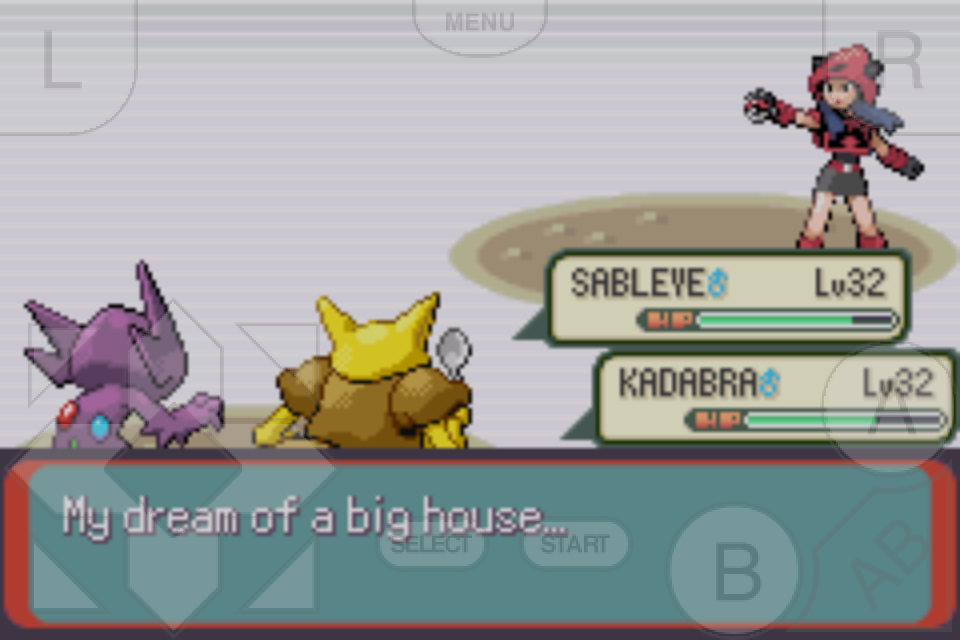
Hack Pokemon Emerald on gpSPhone 7.1.3 with Cheats


After wanting to tryout Gameboy Advanced on my iPhone, I decided the only game I'd really even bother to waste my time playing would be Pokemon. I searched for the last release of an official Pokemon for Gameboy Advanced and I soon came to the conclusion that it was Pokemon Emerald.

Now if you don't know what I'm talking about when I mention an emulator on the iPhone for Gameboy Advanced, you probably wouldn't be here. The emulator is called gpSPhone developed by ZodTTD, you should really check him out, he's a truely devoted guy and has provided the homebrew community with all sorts of ports, thanks ZodTTD!

Now I'm going to explain to you how to use a Pro Action Replay or Gameshark code with gpSPhone 7.1.3. gpSPhone has a maximum limit of 8 cheat codes per file, so make sure you only use up to eight at any given time. The format is simple, you put the description of the cheat code on one line, then the actual code on the following line. If you are using more than one cheat be sure not to put any empty lines between them.

Note: Here are the cheat codes, I've tested them and they work, some require to enter/leave an area to activate, others require a button combination input. After you use some of the warp codes to get to certain Pokemon, you should disable the code otherwise you'll keep teleporting every time you leave the area.

Cheats must be saved in a text file named the same as your rom, such as:
pokemon_emerald.gba.cht
The .cht extension is important otherwise the cheats won't load. If you saved the text file as .txt, rename the extension to .cht. Also remember, this filename is CaSe SeNsItIvE, it must match the rom file name, with the added .gba.cht of course!

Also remember to use gpSPhone 7.1.3, any other version will not work properly. The location to place the .cht file is:
/var/mobile/Media/ROMs/GBA/

Cheat codes:
999 Masterballs (PC Slot)
128898B6 EDA43037
999 Rare Candies (PC Slot)
BFF956FA 2F9EC50D
999 Full Restores (PC Slot)
20EFBA67 6E5BEFAE
Infinite Money
C051CCF6 975E8DA1
No Random Battles
2C5490D9 EB69CACB
Safari Zone
28C0A6F2 8513BE9A
Top of Sky Pillar (Rayquaza)
37A21411 E441F3EA
Faraway Island (Mew)
8DEB234A 4C8DC5EC
Navel Rock (Lugia)
842CB8A9 7F8B0149
Birth Island (Deoxys)
4A99A22B 58284D2D

Make Latias appear, must be enabled in displayed order:
Southern Island (Latias) 1
7703F025 00394020
Southern Island Latias Enabler 2
181690CB 4E53CB05

Catch anyone's Pokemon, press L+R when you see the Pokemon you want and then catch it, must be enabled in displayed order:
Catch Trainer 1
B6C5368A 08BE8FF4
Catch Trainer 2
B8D95CFE 06ED6EA1
Catch Trainer 3
E151C402 8A229A83
Catch Trainer 4
8E883EFF 92E9660D

Encounter certain Pokemon in the wilderness, enable all for the Pokemon wanted in order:
Deoxys Encounter 1
25214170 0AB256A2
Deoxys Encounter 2
FFA6733C EE552E68
Deoxys Encounter 3
2E7B7A58 D0781742
Deoxys Encounter 4
798A3738 3F94DB5D
Charizard Encounter 1
25214170 0AB256A2
Charizard Encounter 2
547D682A C32E071E
Charizard Encounter 3
2E7B7A58 D0781742
Charizard Encounter 4
D52902CA 343CF38A
Dragonite Encounter 1
25214170 0AB256A2
Dragonite Encounter 2
EF4835B3 519FF2C8
Dragonite Encounter 3
2E7B7A58 D0781742
Dragonite Encounter 4
D52902CA 343CF38A


Monday, December 26, 2011

How to update your iPhone 4 Jailbreak from iOS 4.2.1 to 4.3.3 Untethered


Well since jailbreaking isn't so simple after iOS 4.2.1, I had to make this guide to show you how to successfully jailbreak your iPhone while keeping your old baseband and using your SHSH blobs for 4.3.3.

This guide should apply to anyone who has 4.3.3 blobs saved through Cydia and can retrieve them or has them saved somewhere. Now you can jailbreak your iPhone 4 from iOS 4.2.1 to 4.3.3 Untethered using redsn0w. This will teach you how to do the update and jailbreak all while keeping your old Cydia tweaks from your previous jailbreak version.

Requirements
TinyUmbrella (Software)
iTunes (Software)
redsn0w 0.9.9b9d (Software)
Java 6 Update 30+ 32-bit (Software)
OpenBackup (App)
Stock Apple iOS 4.3.3 for iPhone 4 GSM 8J2 (Software)

    Instructions
  1. First, make sure you backup your iPhone through iTunes.
  2. Now, backup all your Cydia tweaks with OpenBackup. (You're going to have to SSH into your device to grab the backup it made and save it on the computer, you can find OpenBackup at repo.modyouri.com)
  3. Get your SHSH Blobs using TinyUmbrella make sure the option to get them from Cydia is checked under the "Advanced" tab.
  4. Download the stock firmware from Apple for iPhone 4 GSM iOS 4.3.3 8J2.
  5. Next, run redsn0w 0.9.9b9d, select "Extras", now select "SHSH blobs" and then select "Stitch".
  6. You should now see two buttons, click on "IPSW" and when explorer pops up, find the stock Apple firmware you just downloaded, select it.
  7. Now click "Local" and find your SHSH blobs you downloaded earlier through TinyUmbrella and select them, then click next and allow it to stitch the stock firmware.
  8. Now close redsn0w and open it again, select "Extras" and click on "Custom IPSW", when explorer opens up find the IPSW you just stitched, it should be on your desktop. (Not the stock one)
  9.  After it's done processing the file, you should have a new firmware named something like "NO_BB_4205467635188_iPhone3,1_4.3.3_8J2_Restore.ipsw".
  10. Now in redsn0w place your device in "Pwned DFU" mode.
  11. In iTunes restore your device, hold shift and click on "Restore" so you can select the custom IPSW. (The file you stitched with your blobs and removed the baseband data from, also make sure that in TinyUmbrella you selected Cydia as your host before doing this step)
  12. After that is done, do not restore the iPhone's backed-up data, iTunes will ask you to do so, do not do that yet, close iTunes.
  13. Next, using redsn0w select "Extras", then click "Select IPSW", select the stock Apple firmware here. (Not the modified one, the stock, it will let you know it identified it)
  14. Now click "< Back" and select "Jailbreak", select your options the ones you want installed. (Cydia is important, I wouldn't recommend any of the others)
  15. Now restore your Cydia tweaks with OpenBackup. (This will take a while, make sure to place the backup from completing the second step in the original folder through SSH located at /var/mobile/Library/Preferences/OpenBackupFiles)
  16. The final step is to Restore your backup from iTunes now, sync through iTunes, finally restore the same backup through iTunes again.
  17. Reboot and you have successfully upgraded your jailbreak from iOS 4.2.1 to iOS 4.3.3 on your iPhone 4 GSM, while preserving the baseband and having your SHSH blobs.


Sunday, November 20, 2011

iAP Cracker: Free In-App Purchases

Free In-App Purchases on jail-broken devices.

In-App Purchases are now free for those with jail-broken devices, ever wondered how you could beat a game that had In-App Purchases? Maybe you didn't want to waste your hard earned money on extras, or you just didn't want to spend an eternity trying to come up with gold coins. Now there's actually an easy solution to fix your problem; it enables you to progress in any game or app that allows you to do In-App Purchases. (Not every app, but a majority of them, here's a list, you can try apps not on the list, many of them may work)

Note: If you're looking to test this on some randoms apps, a simple Google™ search should do the trick, just click here. This simple search uses Google™ search operators, here's what it looks like:
site:"itunes.apple.com" intitle:"App Store" intext:"Top In-App Purchases"

Don't let the name fool you, this is not a crack or anything of the sort, it's a Mobile Substrate Addon (11kb), it was written and developed by urus, it's called iAP Cracker.

The latest version is 0.5-1 (it works on iOS 4 & 5), there's links below where you may be able to find the .deb file and install it through iFile or however you choose to. You can also search for it on Cydia, it should be in the Banned iPhone repository. Now you can buy all the coins in Dark Meadow™ or Unlock the Mighty Eagle in Angry Birds™. This also makes Nadis Lai's Game Mod add-ons useless for a majority of games which implement IAP, iAP Cracker is free, his stuff isn't.